Rutgers.edu
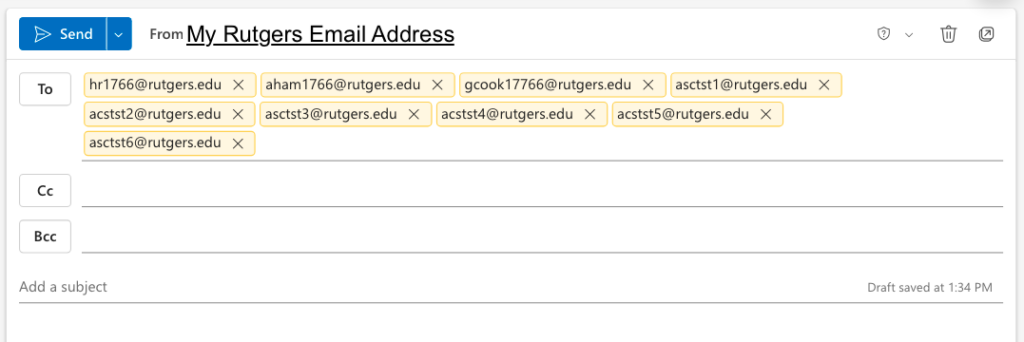
Emails sent to Rutgers faculty, staff, or students with the format netid@rutgers.edu will be delivered to their delivery address, regardless of whether they receive email in ScarletMail or Rutgers Connect. To quickly create a list of email addresses, you can use your Rutgers roster.
- Download the class roster with emails from REGIS.
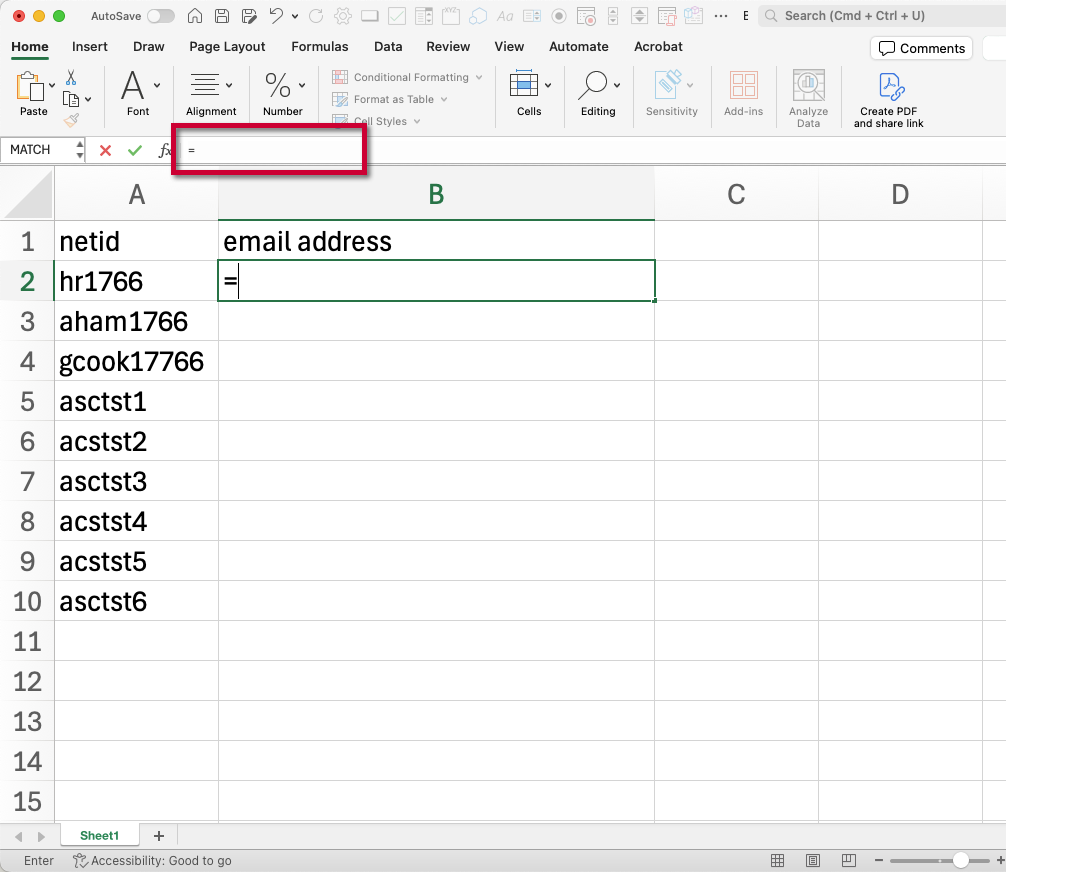
- Copy the NetID column to a new worksheet.
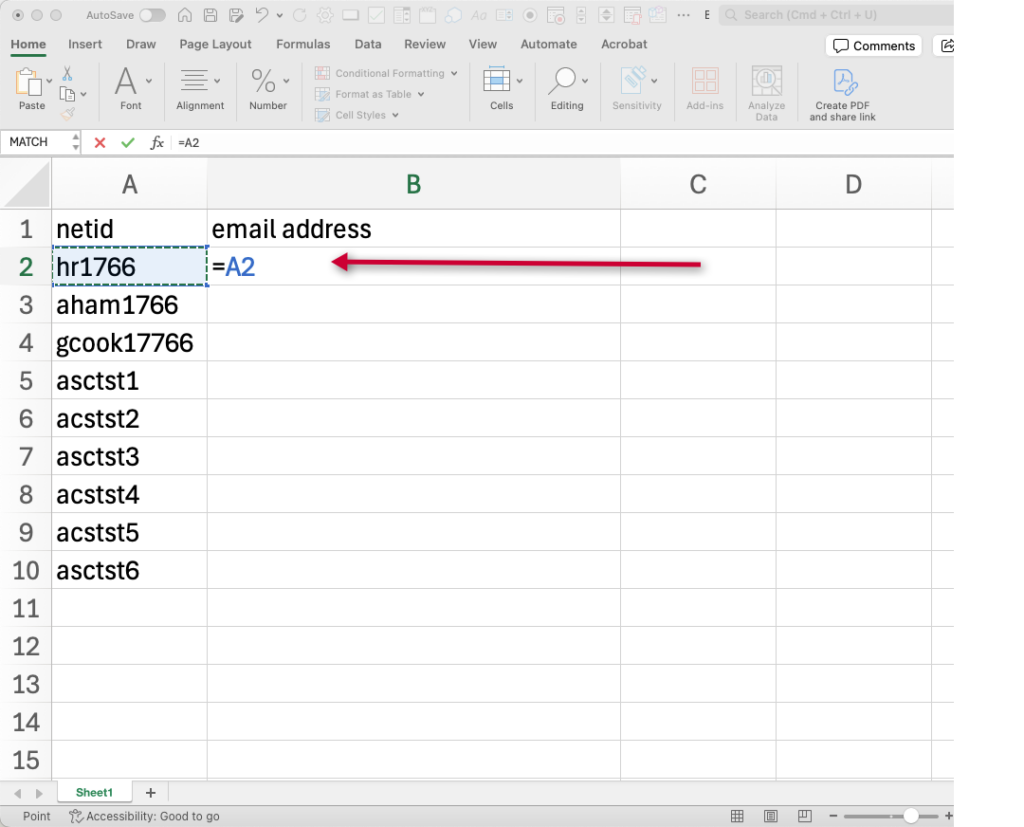
- In column B, type = to begin a formula. Do not press the Enter key so the cell remains active.
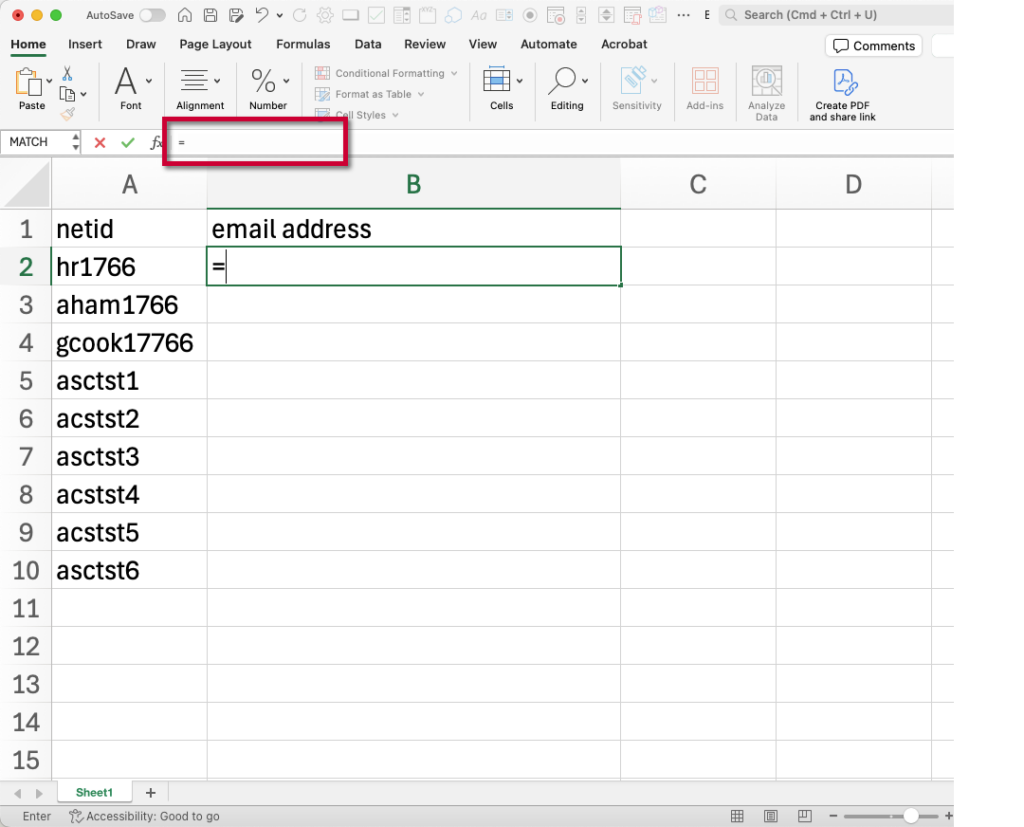
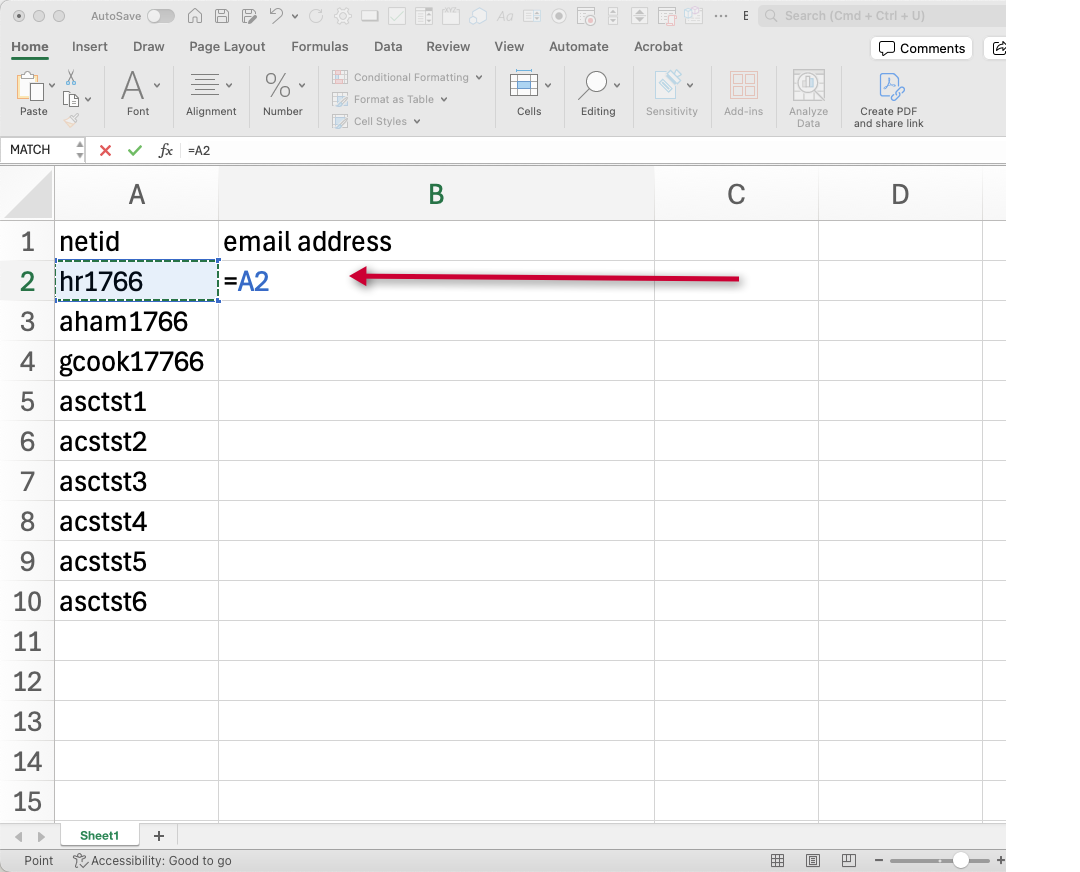
- Click the cell with the first netid using your mouse. This is cell A2 in this example. Your formula will update to =A2. Do not press Enter to keep the cell active.
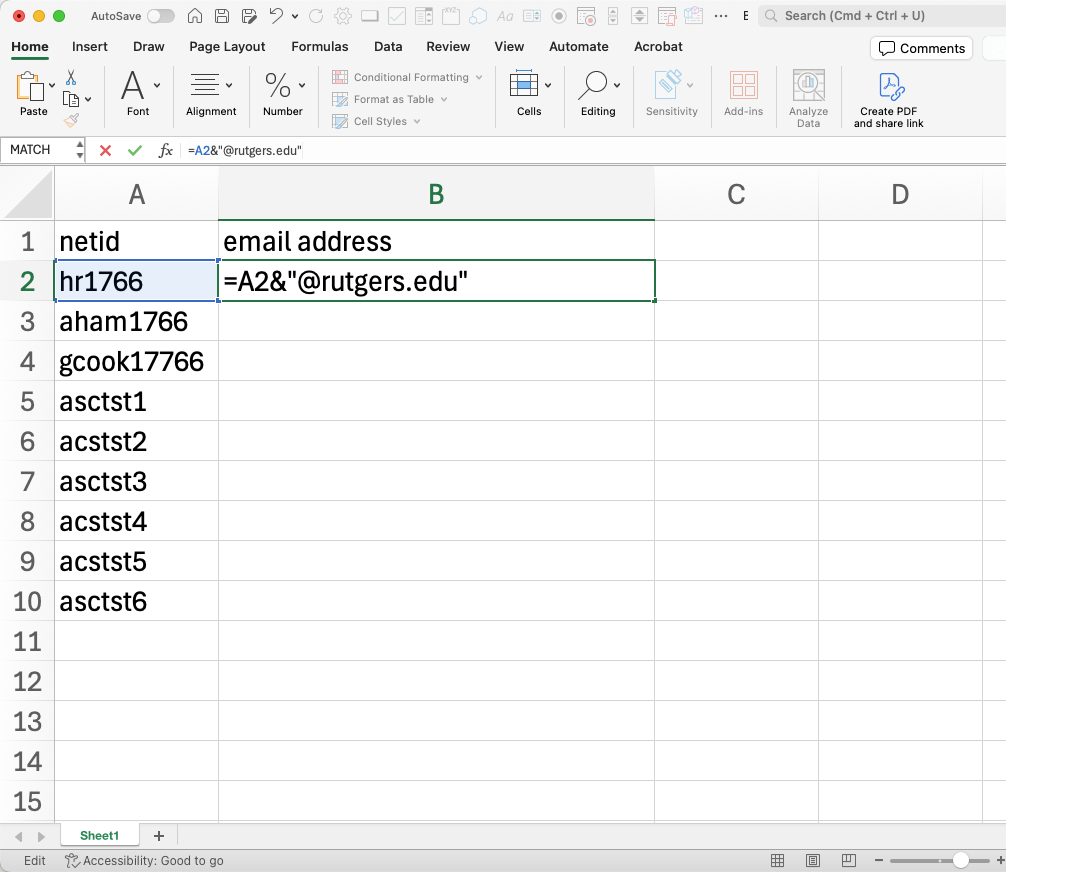
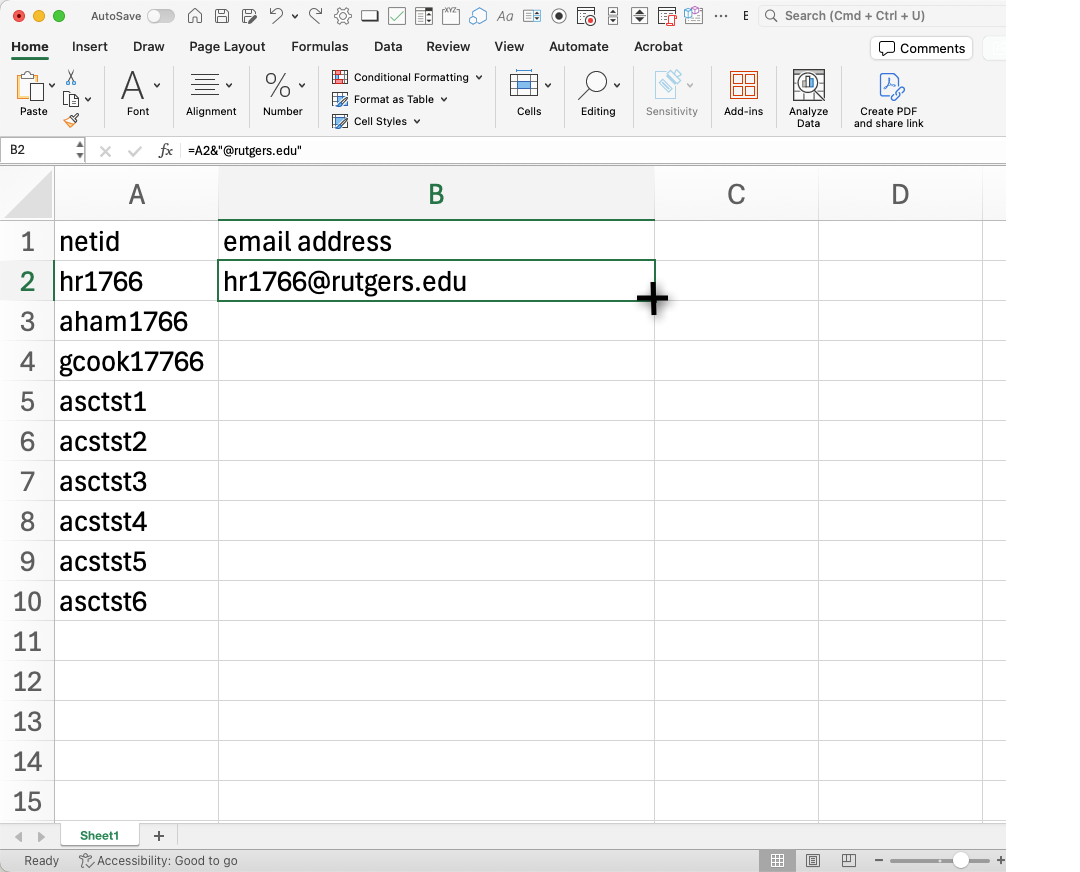
- Type &”@rutgers.edu”.
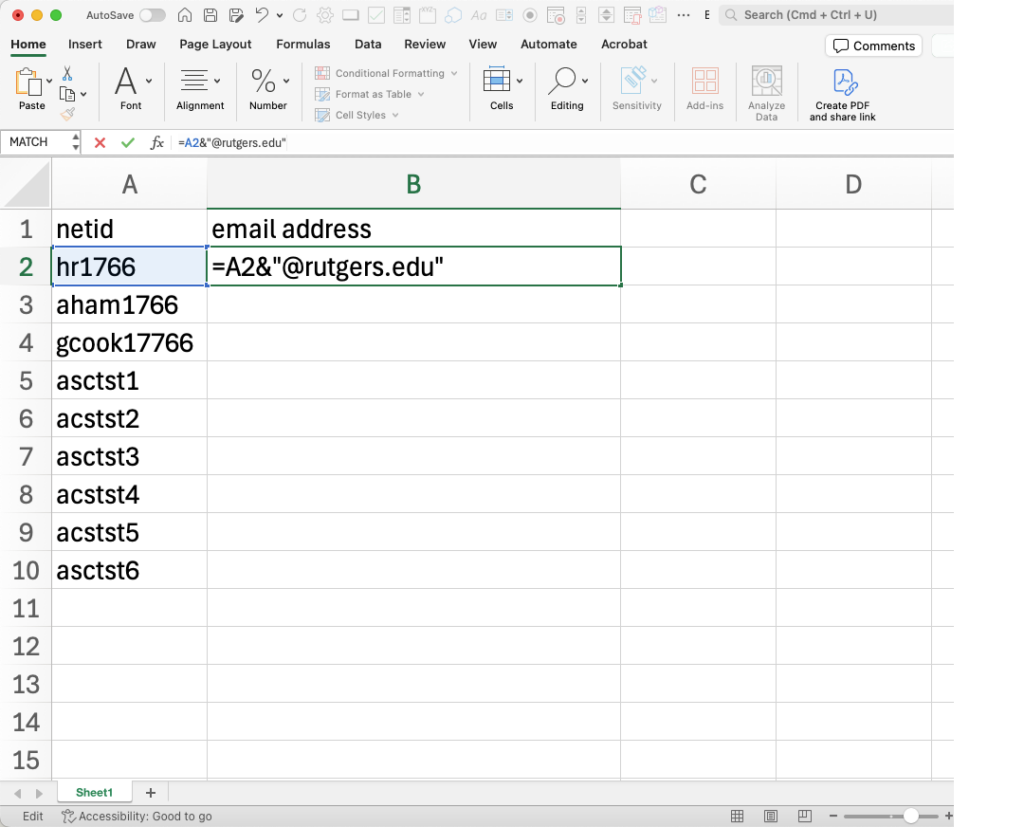
- Press the enter key.
- With your mouse, hover over the lower-right corner of the cell so your cursor turns into a cross.
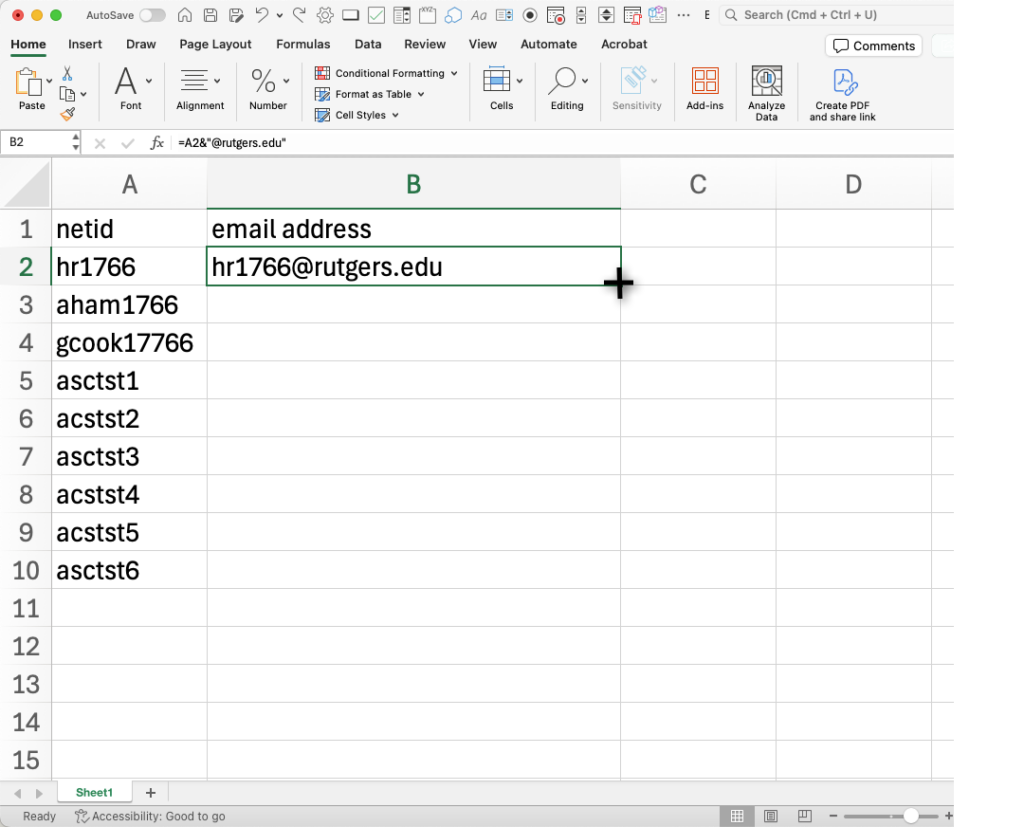
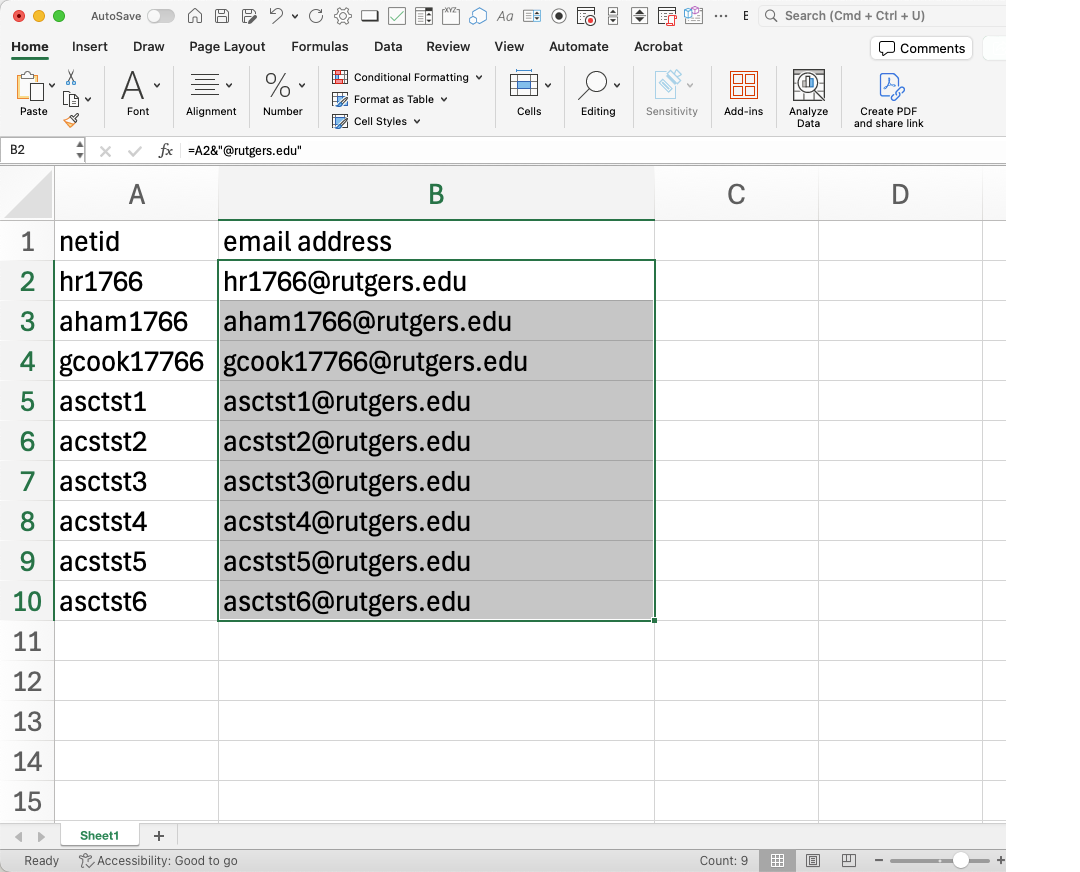
- Drag down to fill the formula into the adjacent cells. The column will contain email addresses in the netid@rutgers.edu format.
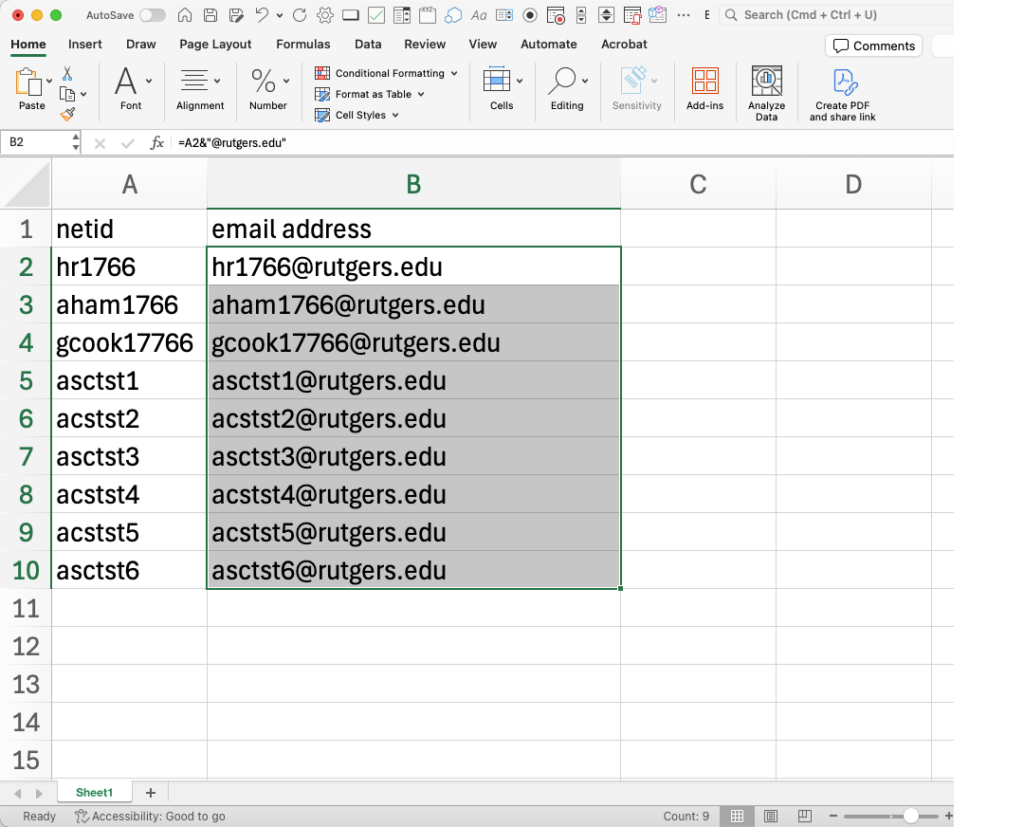
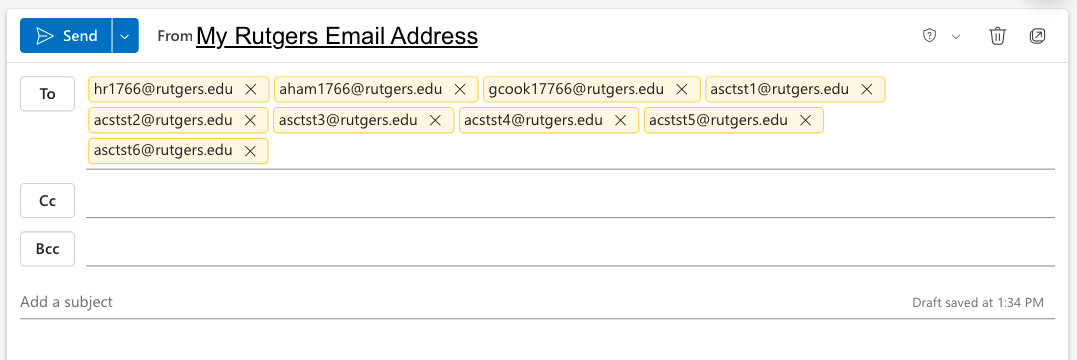
- You may now copy and paste the email addresses into your email program.