 Rutgers.edu
On May 25, 2026 a new dashboard will be available for students.
Canvas will now have a customizable dashboard for learners. Students can use a personalized dashboard with widgets to track their progress. Students will need to opt-in to use the new dashboard. Features include:
- Centralized Coursework Widget: View all assignments from every course in one list.
- Filtering: Sort tasks by course or status (e.g., “Missing” or “Upcoming”).
- Direct-to-Task Access: Open assignments or quizzes directly from the dashboard.
- Updated To-Do List: See upcoming deadlines and required tasks.
- Instant Grades Widget: Check overall course grades at a glance.
- Recent Grades & Feedback: View teacher comments and scores without opening each course.
- People Widget: Find and message instructors quickly.
- Announcements Feed: New design for familiar announcements feature.
- Customize Layouts: Add, remove, or rearrange widgets to highlight students’ top priorities.
- Dashboard View Option: Switch between the new dashboard and classic view.
Note: The customized dashboard is currently supported only for users with a student-only role. Users with both student and non-student roles will not see this feature.
Change Benefit
The updated dashboard makes it easier for students to access key course information and tools, putting assignments, grades, and announcements front-and-center.
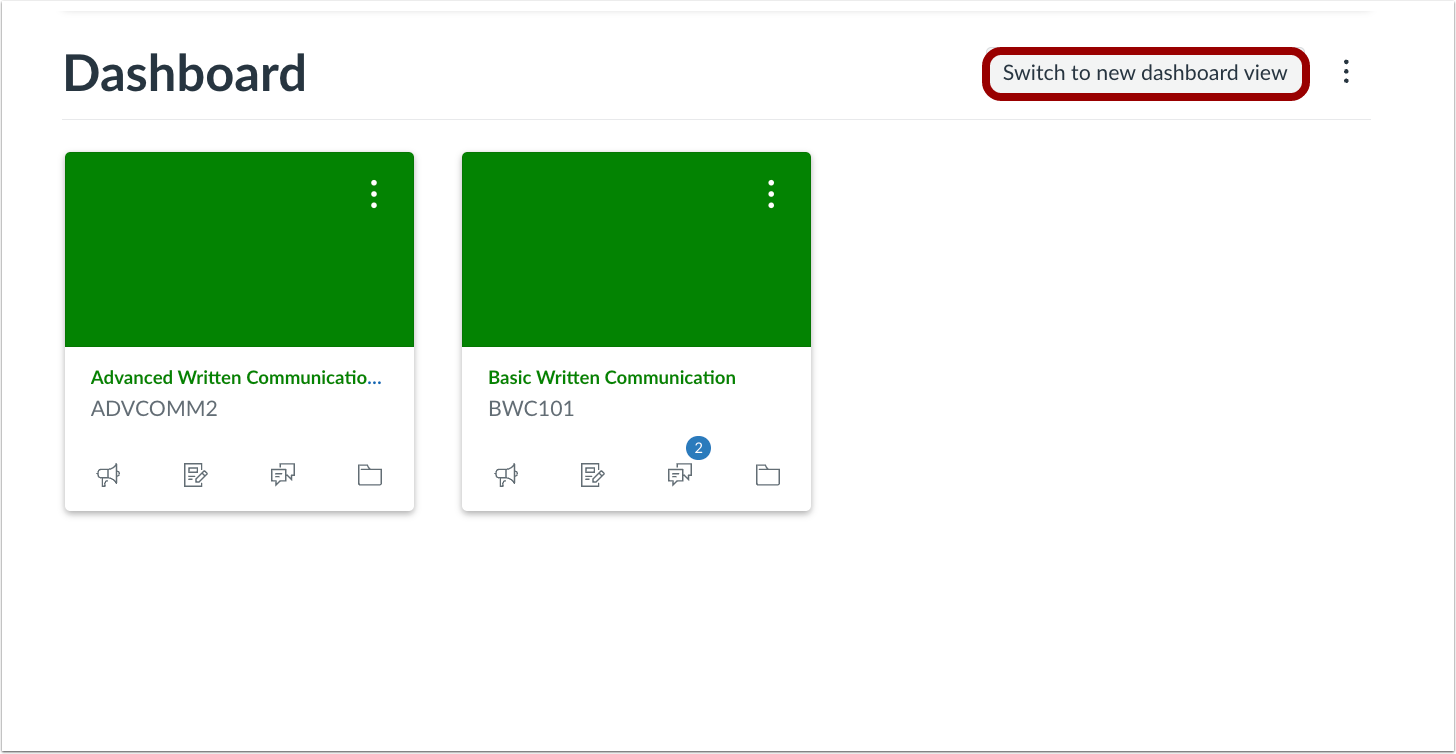
Students can switch to the new customizable dashboard by clicking the “Switch to new dashboard view” button located at the top right of the dashboard page.
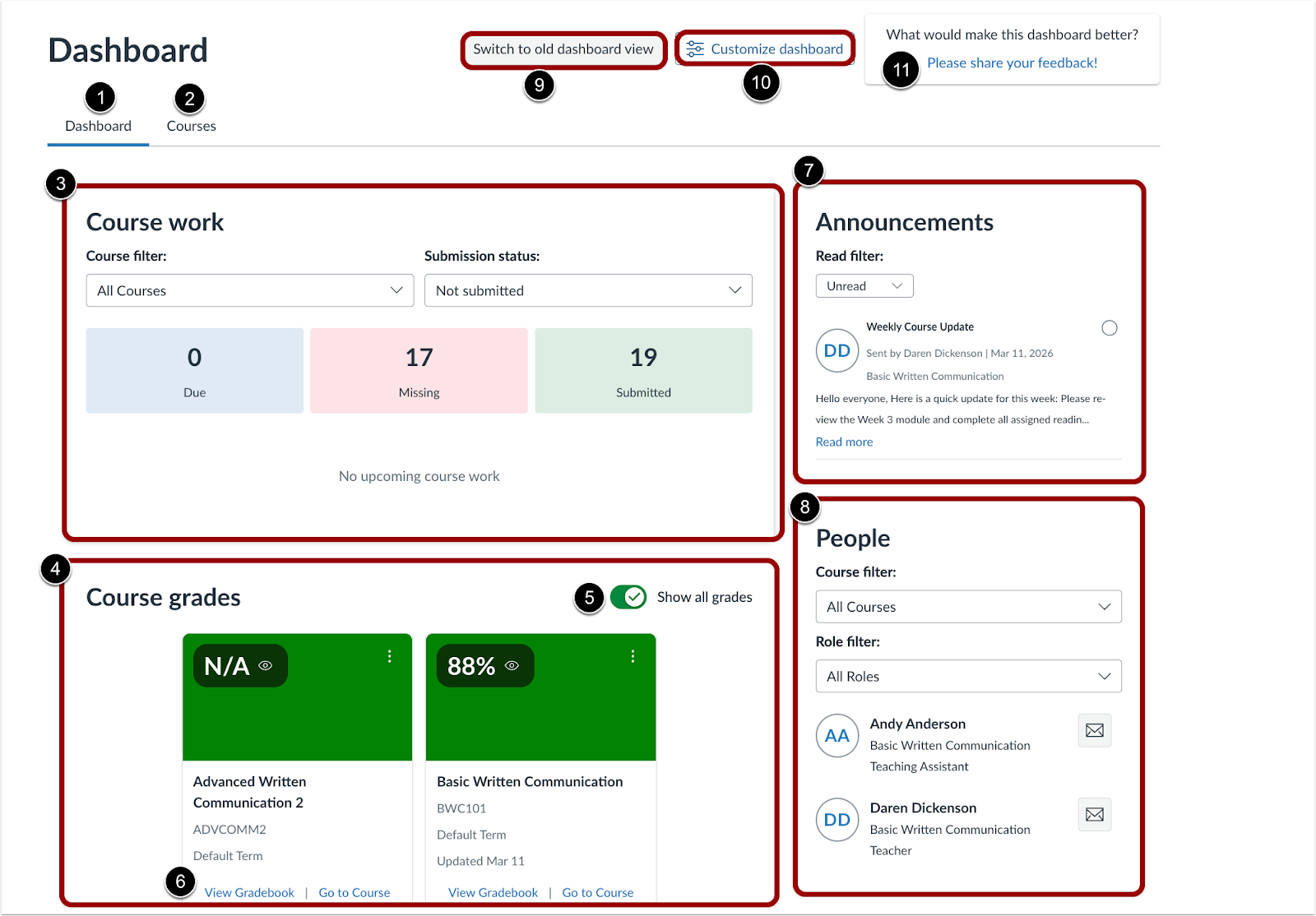
The student dashboard includes several tabs and widgets to help students access key course information and manage their learning:
- Dashboard tab [1]: Displays various widgets for quick access to course information.
- Courses tab [2]: Shows only course cards for easy navigation.
- Course work widget [3]: Shows the number of assignments that are due, missing, or submitted. Students can filter by course or submission status.
- Course grades widget [4]: Displays grades for each course. Use the Show all grades toggle [5] to hide or reveal grades. Click the View Gradebook link to view the course Grades page [6].
- Announcements widget [7]: Displays new announcements. Students can filter by Read, Unread, or All.
- People widget [8]: Lets students filter users by course or role and send Inbox messages.
- Dashboard options: Students can switch back to the classic dashboard view [9] or customize the dashboard [10].
- Feedback [11]: Students can share feedback on the new dashboard view.
Students can customize their dashboard by adding, moving, or removing widgets and saving their layout:
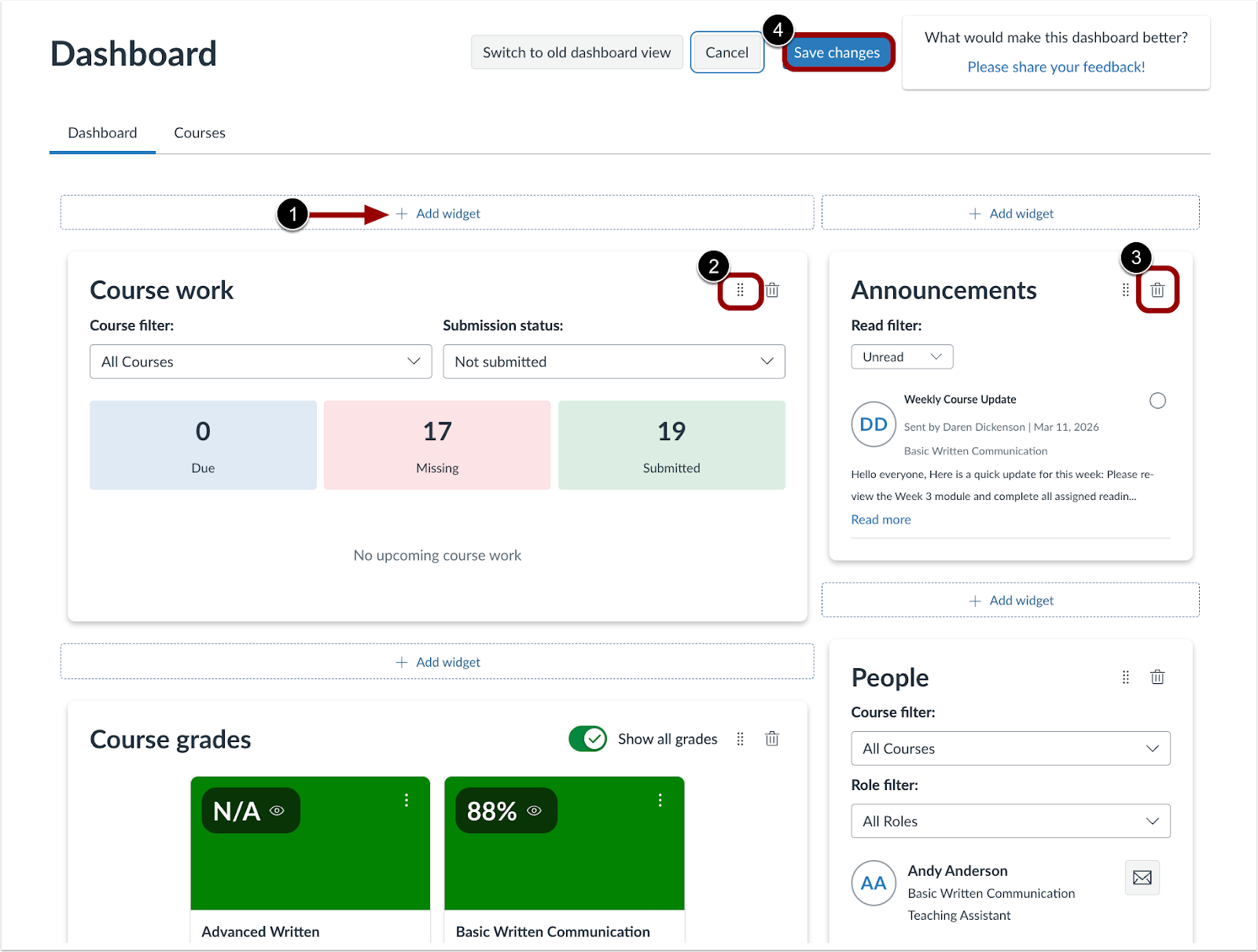
- Add widget [1]: Click to add additional course information to the dashboard.
- Rearrange widgets [2]: Drag widgets to different areas to organize the dashboard.
- Delete widgets [3]: Remove widgets not needed on the dashboard.
- Save changes [4]: Click when finished customizing to apply the dashboard layout.
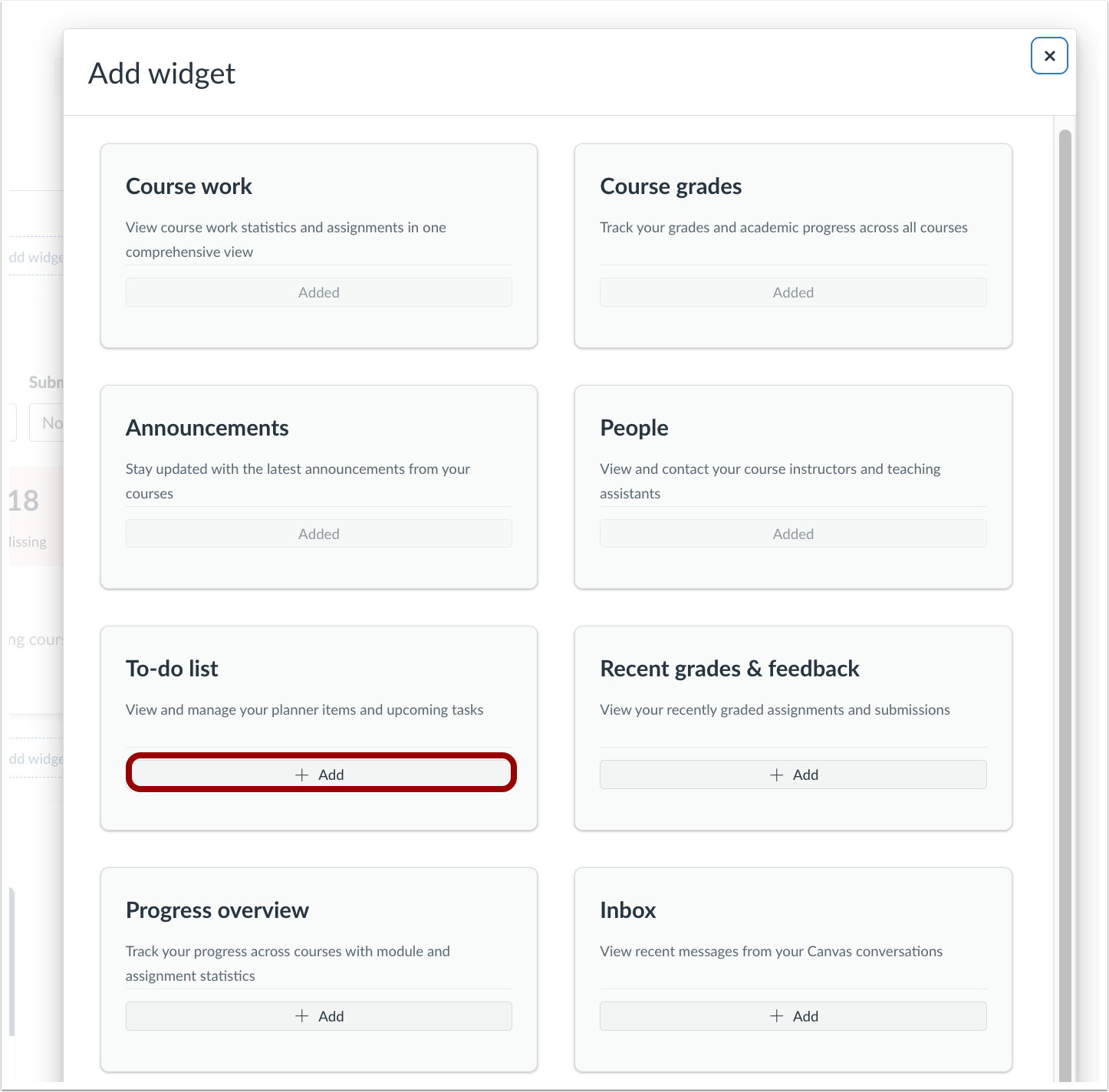
Click the Add link to add widgets to the dashboard.
To-Do List guides for instructors
With the release of the new Canvas student dashboard, students can choose to use a holistic view of their coursework to manage their time and responsibilities, rather than navigating to each course site individually. As best practice, course instructors may need to edit course pages, assignments, and discussions to add due dates and inclusion in the student’s To-Do list. It is recommended to avoid adding text headers to course modules, as they will not appear on the student dashboard.
- How do I add a page to the student To-Do list as an instructor?
- How do I add or edit details in an assignment?
- How do I edit or delete a discussion in a course?
- How do I add an event to a course calendar?
- How do I add a recurring event to a calendar?
- How do I edit or delete an event or assignment in the Calendar?
- How do I add and duplicate an event for course sections in the Calendar?